How to Get Started with Model Context Protocol
TL;DR
Spin up a local SQLite MCP server, point your favourite LLM at it, and start talking SQL—in under five minutes.
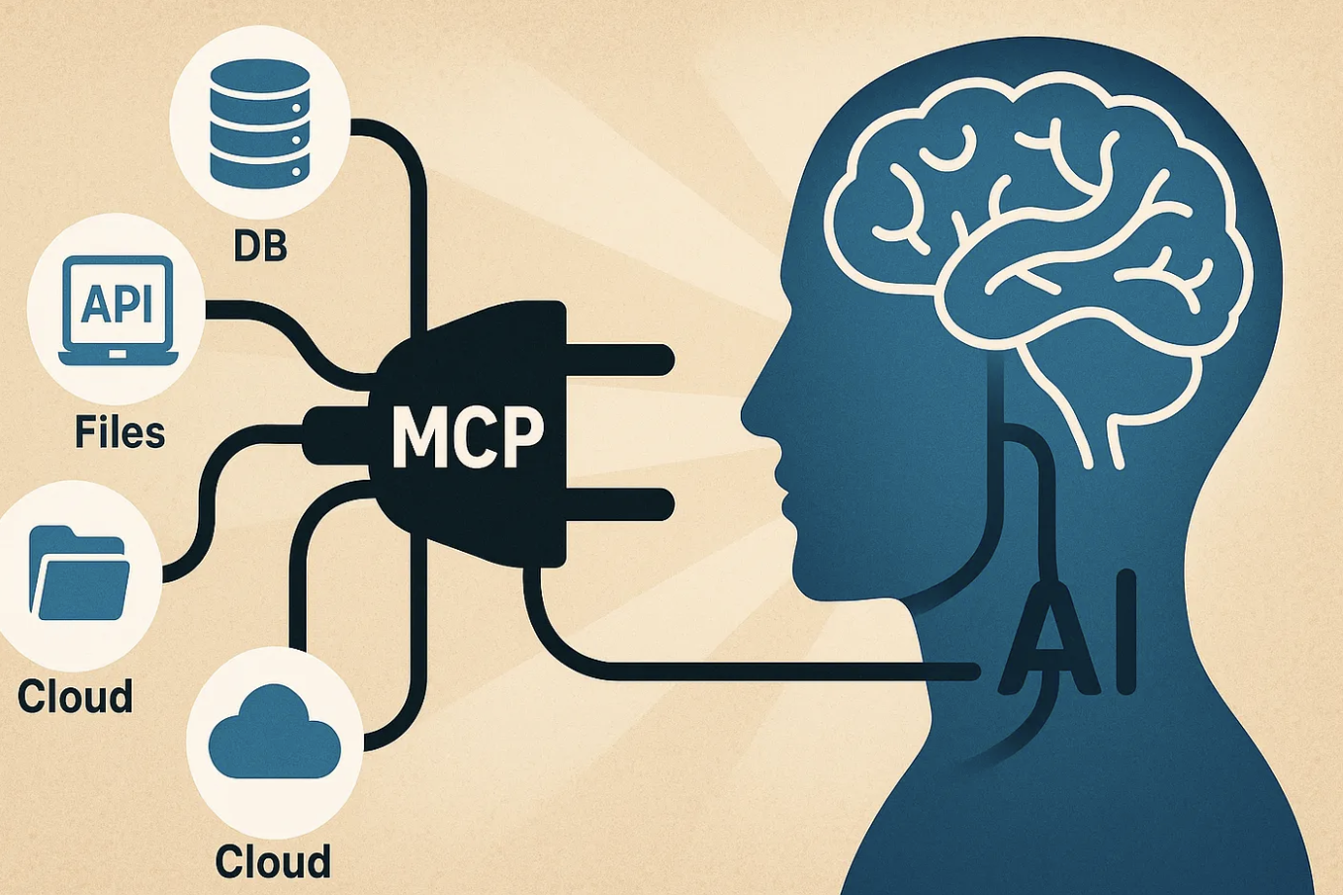 Source: Generated by Dall-E 3
Introduction
Large language models shine when they can reason over real data, but handing them unfettered access to your production database is... well, terrifying. Enter Model Context Protocol (MCP): a lightweight, tool‑based contract that lets you expose just the right capabilities (read‑only queries, schema discovery, feedback collection, etc.) in a way that models can understand and invoke safely.
In this guide we’ll walk through a minimal proof‑of‑concept (POC) MCP server built with FastMCP and SQLite. We’ll cover:
Setting up the server and sample database
Exploring the custom tools we defined (execute_query, describe_table…)
Connecting the server to Claude Desktop for interactive querying
Ideas for extending the POC into something production‑ready
The code is public on GitHub — clone it, follow along, and drop questions in the comments if anything feels off.
What is the Model Context Protocol?
On November 25, 2024 Anthropic open‑sourced MCP, positioning it as a universal bridge between AI assistants and the systems where real data lives—content repositories, business apps, dev environments, you name it. Instead of writing a bespoke connector for every new data source, you expose a small set of JSON‑described tools on an MCP server and let any MCP client (Claude Desktop, an agent framework, your own script) call them.
Why the fuss?
Open, two‑way standard — secure, structured requests and responses flow between models and data stores.
Server / client split — run a tiny server next to your database (Postgres, Git, Slack, Google Drive…), point the model at it, and you’re done. No extra glue.
Ecosystem out of the gate — Anthropic shipped ready‑made servers for Google Drive, Slack, GitHub, Postgres, and Puppeteer; early adopters like Block and Apollo already have MCP in production.
First‑class in Claude Desktop — local servers auto‑register so you can chat with your data straight from the desktop app.
Not just databases — remote APIs too. MCP servers can wrap any REST, GraphQL, or gRPC service (Stripe, Jira, your own microservice), letting models hit cloud APIs exactly like local tables.
Community‑driven — spec, SDKs, and reference implementations all live in public repos—pull requests welcome.
With that backdrop, let’s zoom in on our SQLite demo and see where MCP really shines.
General architecture
MCP follows a simple client ↔ server pattern that scales from your laptop to the cloud:
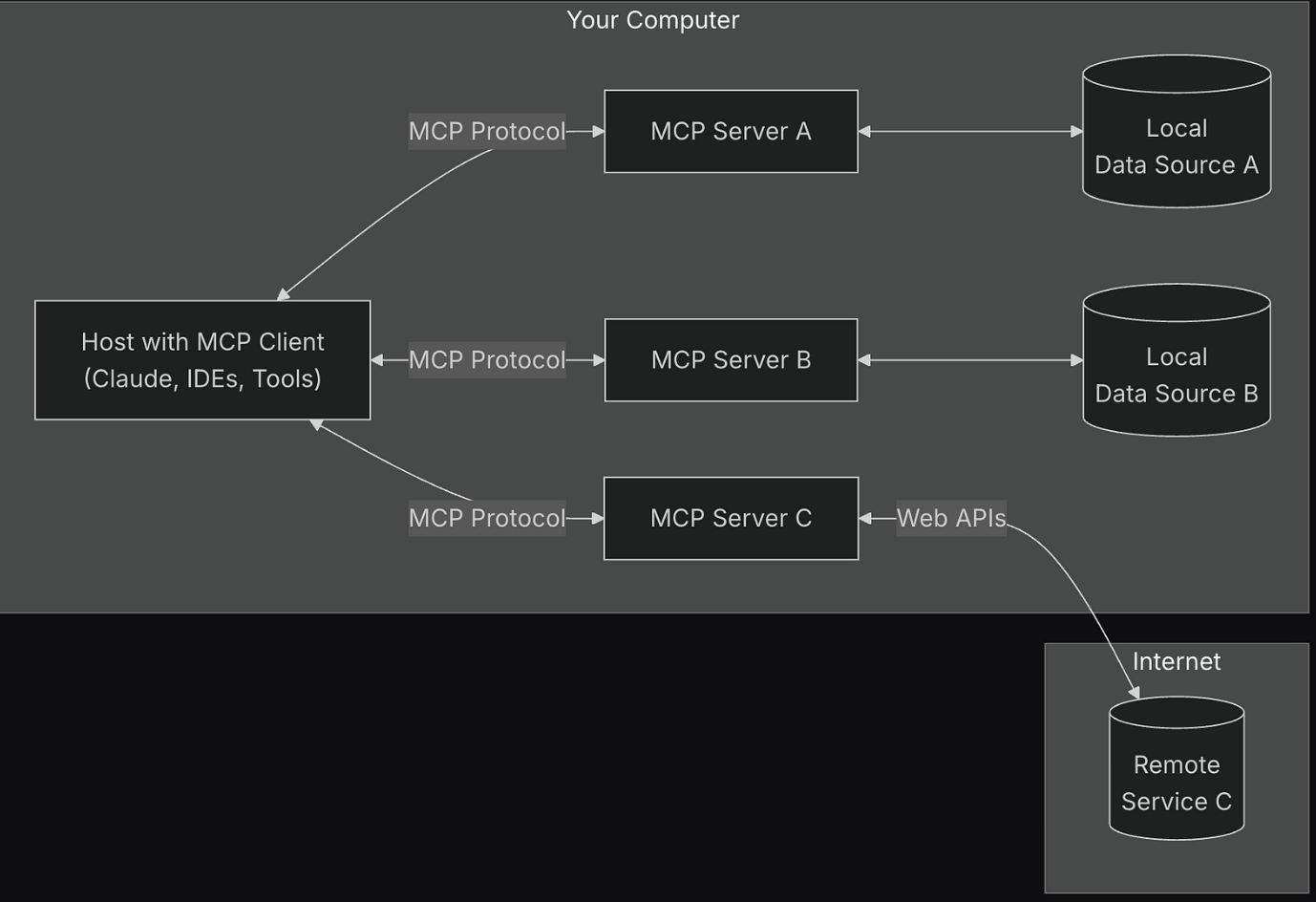 Source: https://modelcontextprotocol.io/introduction
| Component | Role |
|---|---|
| MCP Host | The UI or agent (Claude Desktop, your IDE) that wants context |
| MCP Client | Maintains a 1‑to‑1 connection with a server, handling auth & retries |
| MCP Server | Lightweight process that exposes domain‑specific tools via JSON |
| Local Data Source | Files, DBs, or services the server can access on your machine |
| Remote Service | External API the server can proxy (e.g., Stripe, Jira) |
A single host can juggle multiple servers at once—imagine Claude Desktop chatting with your local SQLite DB, a Git repo, and a SaaS ticketing API simultaneously.
What we’ll build in this article: we’re going to implement the MCP Server block—highlighted above—using Python, FastMCP, and SQLite. By the end you’ll have a fully‑functioning server that exposes database tools the host (Claude Desktop) can call in real time.
In a Hurry?
If you just want to run the demo locally, the quick‑start is:
# 1. Clone the repo
git clone https://github.com/madhavarora1988/mcp_sqlite_poc.git
cd mcp_sqlite_poc

# 2. Install dependencies
pip install -r requirements.txt

# 3. (Optional) generate a fresh SQLite DB with sample tables & rows
python generate_sample_db.py

# 4. Fire up the MCP server (read‑only by default)
python server.py
By default the server listens on stdio, which is exactly what Claude Desktop expects when it auto‑detects local MCP servers. If you’d rather expose an HTTP port, simply change the transport parameter in app.run_async().
Understanding the POC
Project layout
.
├── generate_sample_db.py  # creates sample.db with metrics, users, orders…
├── requirements.txt       # FastMCP, aiosqlite, pydantic…
├── server.py              # the SQLite MCP server
└── README.md              # extended docs & Env vars
generate_sample_db.py bootstraps a realistic e‑commerce schema with products, orders, and an order_analytics view so you have something to query straight away.
server.py exposes six MCP tools and handles validation, logging, and optional read‑only mode.
Key safety features
Read‑only toggle – controlled via the
READ_ONLYenv var (defaults totrue).validate_query()– rejects any SQL that starts with or contains risky verbs (DROP,PRAGMA,ATTACH, etc.) before it touches the database.Param‑sanitised inserts – when
READ_ONLYisfalse, sample‑data helpers still use parameterised statements to avoid injection.
Available tools
| Tool | Purpose | Typical Payload |
|---|---|---|
execute_query|Run a SELECT (or safe write) statement |
{"query": "SELECT * FROM products LIMIT 3;"} |
|
list_tables|See what objects are available |
{} |
|
describe_table|Get column names and types |
{"table_name": "orders"} |
|
count_rows|Quick row count |
{"table_name": "order_items"} |
|
insert_sample_data|Populate demo rows (write‑mode only) |
{"table_name": "customers", "count": 10} |
|
add_feedback|Collect user feedback |
{"user": "Alice", "email": "...", "feedback": "Great!"} |
Feel free to extend this list with your own domain‑specific tools—just decorate an async function with @app.tool("my_tool") and FastMCP will handle the schema for you.
Testing in Claude Desktop
Claude Desktop automatically scans its configuration file for MCP servers and makes them available in any chat. On macOS you’ll find (or create) that file here:
~/Library/Application Support/Claude/claude_desktop_config.json
Append (or merge) the following block so Claude knows how to start our SQLite server:
{
  "mcpServers": {
    "sqlite": {
      "command": "<absolute uv path>",
      "args": [
        "--directory",
        "<Path to workspace>",
        "run",
        "server.py"
      ]
    }
  }
}
<absolute uv path>– full path to the uv executable (e.g./usr/local/bin/uv).<Path to workspace>– folder that containsserver.py,generate_sample_db.py, andsample.db.
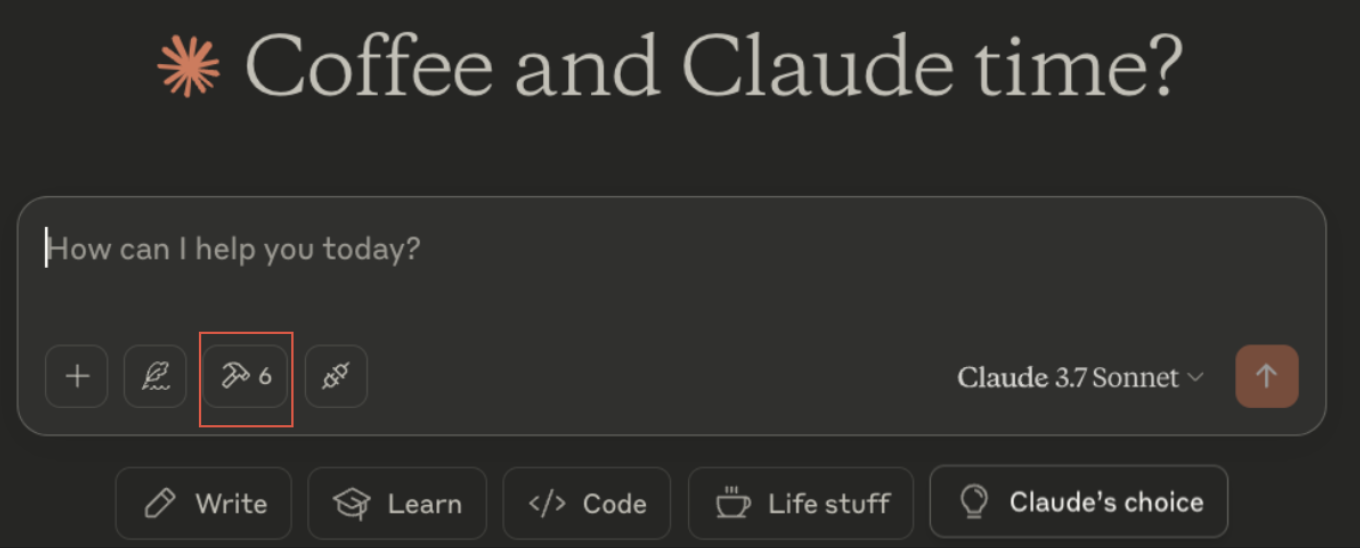
Save the file—if the path didn’t exist, macOS will create the Claude directory chain automatically—then restart Claude Desktop, and you should see sqlite listed in the left‑hand Context panel. You’ll also notice a small hammer icon with a count (e.g. 6) that reads “MCP tools available” when you hover—proof that the server registered correctly (see Screenshot 1 below).
 Source: Image by Author
Click that icon and Claude pops up a modal detailing every tool your server exposed (Screenshot 2). From here you can double‑check descriptions—or skip ahead to the Example interactive query section below to watch a full conversation in action.
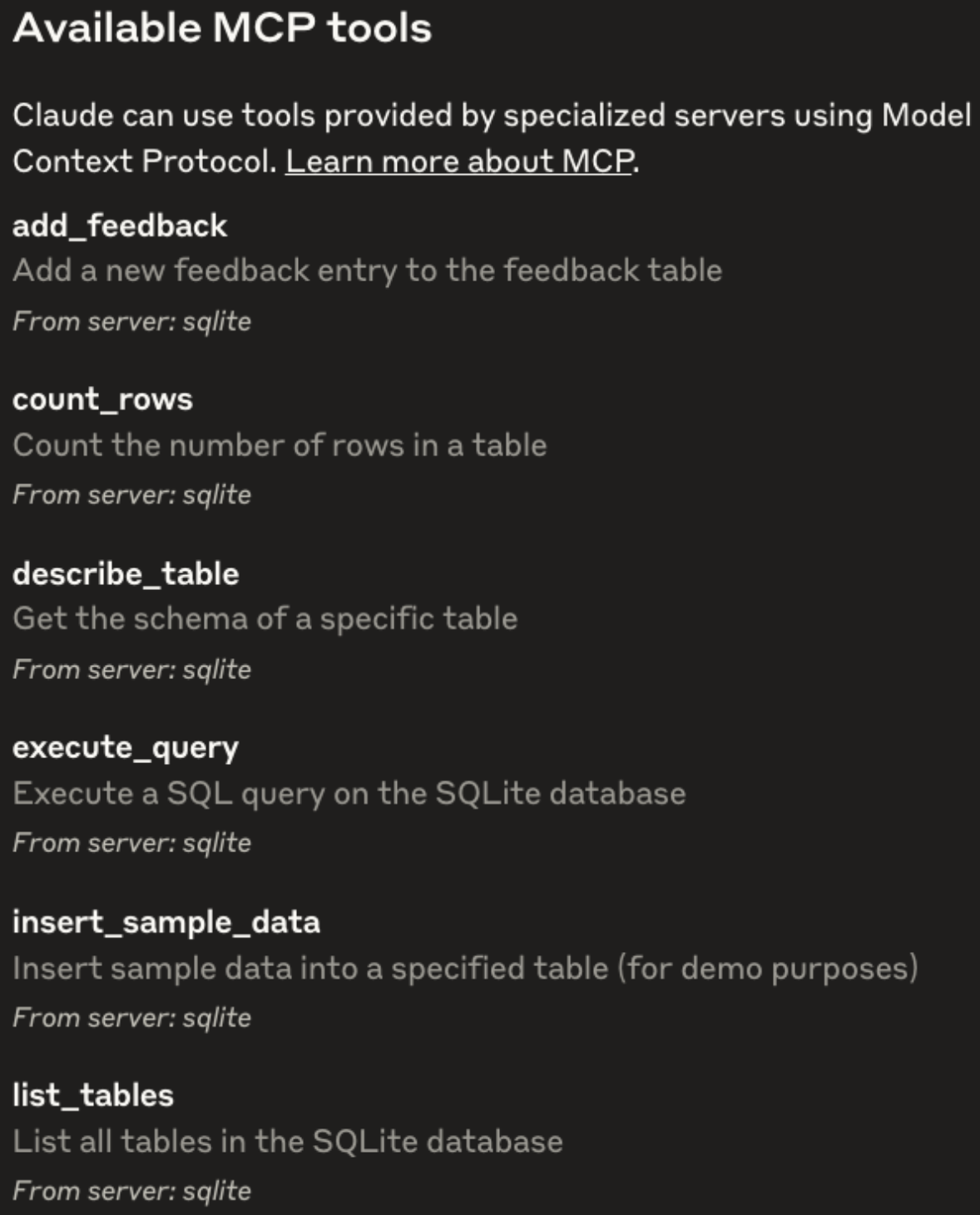 Available Tools(Source: Image by Author)
Example interactive query
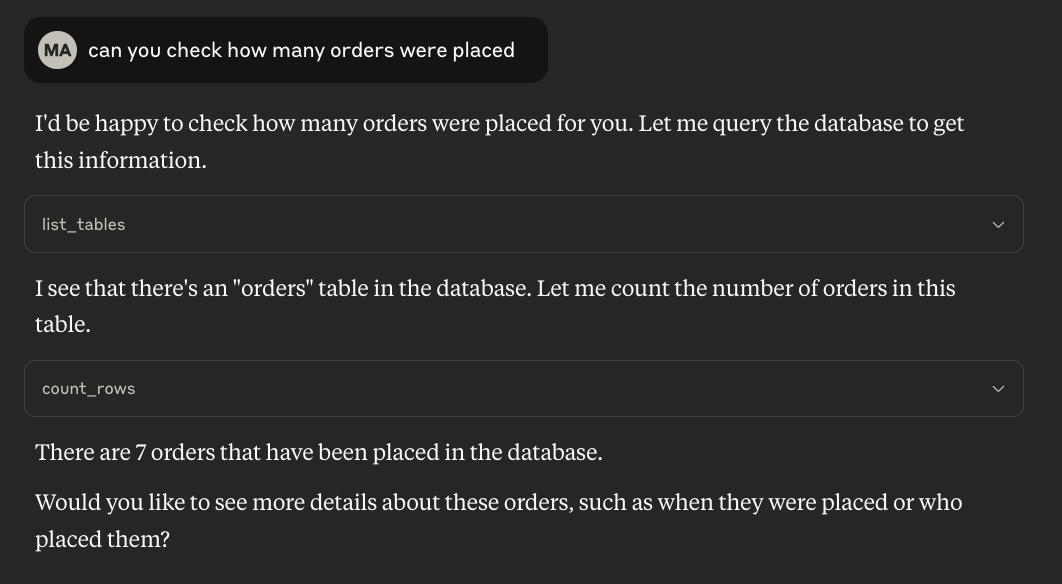
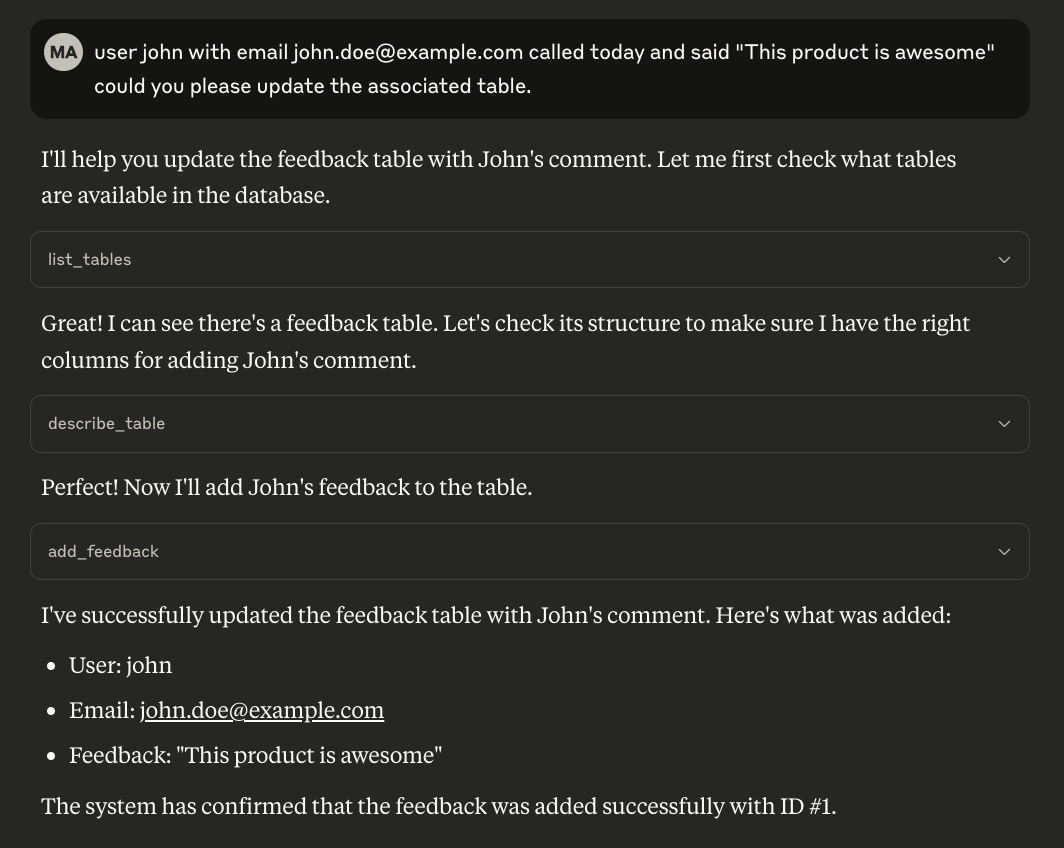
Once the tools show up you can chat naturally, and Claude will chain the right calls for you. In the screenshots below I asked three follow‑up questions:
- "Can you check how many orders were placed?" – Claude inspected the schema with
list_tables, usedcount_rows, and reported 7 orders.
 Source:Image by Author
"Yes, who placed them?" – Claude peeked at table schemas (
describe_table), executed a join viaexecute_query, and returned a customer‑by‑customer breakdown.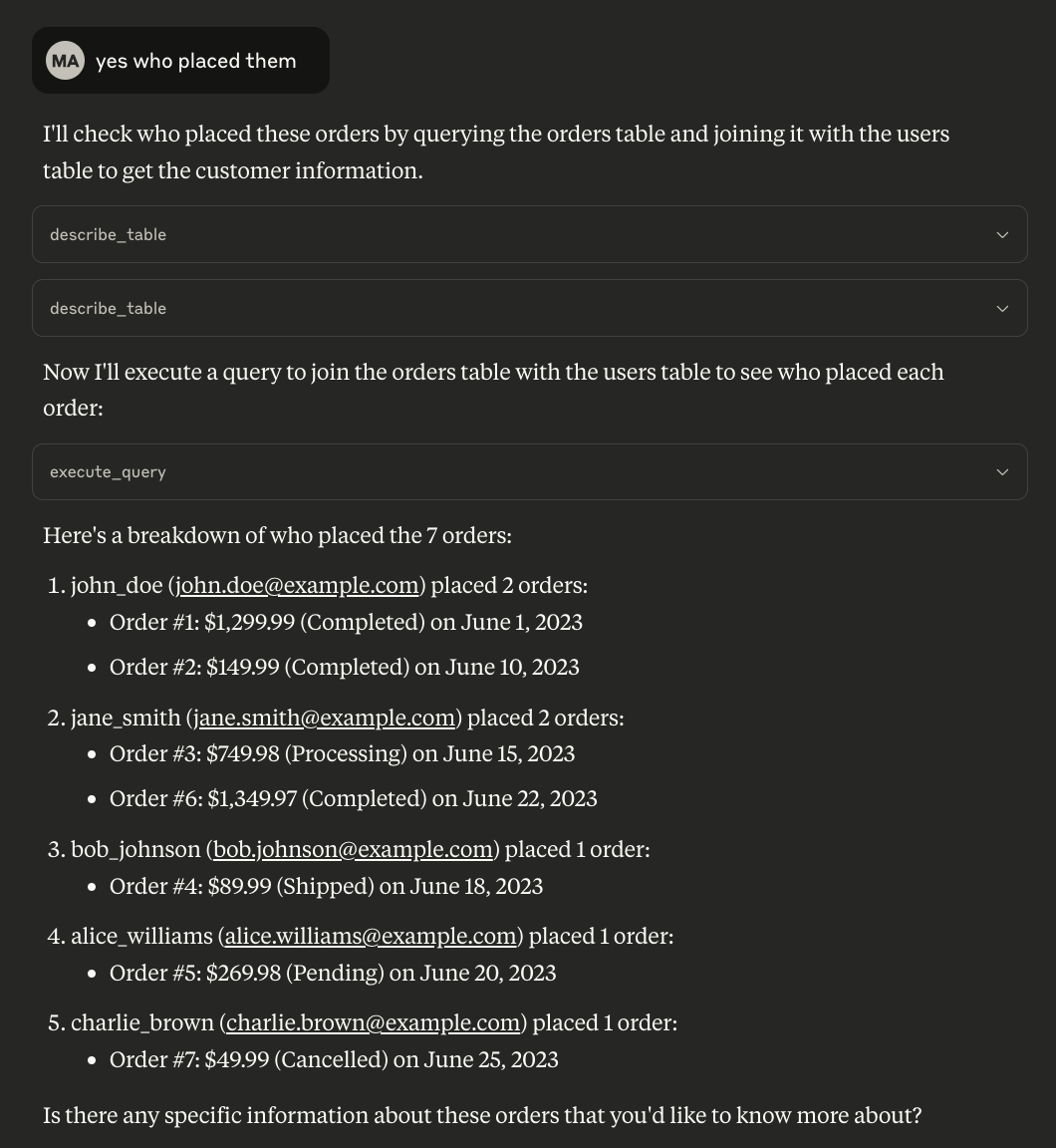 Source:Image by Author
"User John says "This product is awesome" — please update the associated table." – Claude validated the schema again and invoked
add_feedbackto insert the comment into the feedback table, confirming success with the returned ID.
 Source: Image by Author
💡 Notice how the assistant narrates each tool invocation, so you can audit exactly what was run.
Feel free to riff on this flow—ask for the most expensive order, daily sales totals, add new rows (with read‑only off), or fetch inactive users and watch the model stitch together the correct SQL on the fly.
Putting It All Together
Spin up the server – local, container, or cloud function.
Add it to your model config – Claude Desktop, Anthropic SDK, LangChain, etc.
Let the model explore the schema – start with
list_tables()anddescribe_table().Iterate – add domain‑specific tools (e.g.,
forecast_sales,flag_anomaly) as your use‑case grows.Lock it down – once happy, switch the DB to read‑only or point the server at a replica.
Suggestions
Keep it small. Only expose tables the model genuinely needs (views are great for this).
Log aggressively. The demo prints every query with user/time stamps—pipe that into Loki or CloudWatch in prod.
Fail loudly. If a malformed query sneaks past validation, raise a clear error so the model can retry with a better prompt.
Document tool semantics. Use the
descriptionfield in@app.toolto teach the model what each action does.
Conclusion
Model Context Protocol turns the vague idea of “let the LLM hit the database” into a concrete, enforceable contract. With less than 200 lines of Python we’ve wired up authentication‑free SQLite access, safe query validation, and a friendly tool catalogue the model can browse. Give the POC a whirl, customise it for your own datasets, and let me know in the comments what you build!